How to call Workday API in SSIS (Read or Write Data)
Here are high level steps to read or write Workday data in SSIS.
- Obtain Workday WSDL URL (Service Metadata) and API URL for your tenant
- Craft POST request XML using tool like SoapUI for desired operation (e.g Get_Employee )
- Configure SSIS HTTP Connection (for SOAP WSS) using API url and workday Userid / password.
- Call Workday API using any of these tasks or components SSIS XML Source or SSIS REST API TASK or SSIS Web API Destination to read / write data.
Now lets look at each step in detail in the following sectionsNOTE: If you are trying to get data from Workday report instead (your Workday admin created a report and gave you a link) then skip Soap UI part, use the URL with GET method and Basic authentication instead of SOAP WSS. For more info Workday Integration Training
Obtain Workday SOAP WSDL URL (API Metadata URL)
First step to consume workday api using SSIS is download SOAP WSDL file. WSDL is XML file which describes available API operations and structure of request and response. Here is the list of available WSDL for various Workday API Services. Right click on WSDL icon and save to local disk. We will use this WSDL in next section to craft SOAP Request using SoapUI tool
You can find more information about Other Workday online Training
Obtain Workday API URL
Once you have WSDL file, next step is craft correct URL for API service you like to call. Service name can be obtained from (Check service column)
Syntax: https://<workday host name>.workday.com/ccx/service/<tenant name>/<service-name>
Example: https://MY-INSTANCE.workday.com/ccx/service/MY-TenantID/Human_Resources
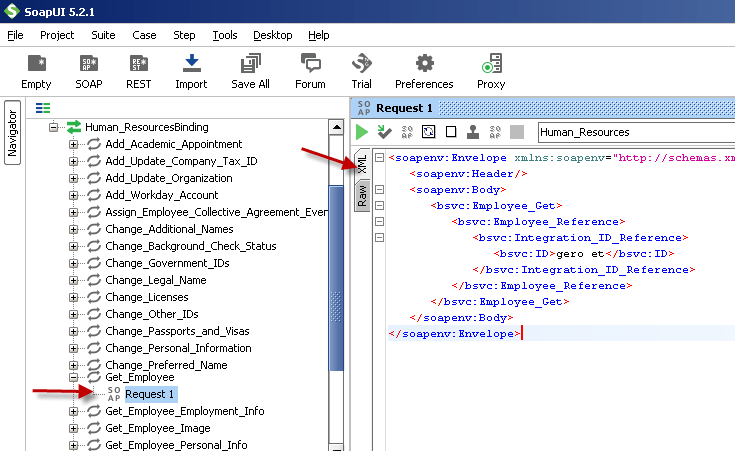
Craft SOAP Body (XML API Request) using SoapUI
Now its time to craft some SOAP Request. Check steps outlined here (Use SoapUI tool) . Once you have Request Body XML you can change parameters as per your need.
Here is sample SOAP XML Body for Get Employee call from Human_Resopurces service.
| 123456789101112 | <soapenv:Envelope xmlns:soapenv=”http://schemas.xmlsoap.org/soap/envelope/” xmlns:bsvc=”urn:com.workday/bsvc”> <soapenv:Header/> <soapenv:Body> <bsvc:Employee_Get> <bsvc:Employee_Reference> <bsvc:Integration_ID_Reference> <bsvc:ID>gero et</bsvc:ID> </bsvc:Integration_ID_Reference> </bsvc:Employee_Reference> </bsvc:Employee_Get> </soapenv:Body></soapenv:Envelope> |
Create SOAP Request Body from WSDL (Using SoapUI tool)
Creating SSIS Connection for Workday SOAP API call using WSS Security
To create new connection for workday perform the following steps.
- Two ways you can create HTTP connection for workday
First approach: Right click in the connection managers panel and click “New Connection…” and Select ZS-HTTP connection from the connection type list and click OK.
— OR —
Second approach: If you are already on SSIS XML Source or SSIS REST API TASK or SSIS Web API Destination UI then click [New] next to the Connection Dropdown. - Once HTTP Connection UI is visible configure following way.
- Enter API URL for Workday (Make sure you don’t enter WSDL URL . Your API URL will be something like below.
Syntax: https://<workday host name>.workday.com/ccx/service/<tenant name>/<service-name>
Example: https://wd1-impl-services1.workday.com/ccx/service/MyTenantID/Human_Resources - Select credential type as SOAP WSS (This setting is only found in v2.6.4 or Higher)
- Enter your workday userid and password
- For WSS password type setting you leave it default (Not set) or change to PasswordHash for more secure communication.
- Click OK to save.
- Enter API URL for Workday (Make sure you don’t enter WSDL URL . Your API URL will be something like below.

To get in-Depth knowledge, enroll for a live free demo on Workday Training
 programming land