In this tutorial, you learn how to use SSIS Designer to create a simple Microsoft SQL Server Integration Services package. The package that you create takes data from a flat file, reformats the data, and then inserts the reformatted data into a fact table. In following lessons, the package is expanded to demonstrate looping, package configurations, logging, and error flow.
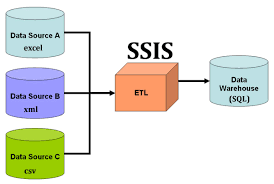
When you install the sample data that the tutorial uses, you also install the completed versions of the packages that you create in each lesson of the tutorial. By using the completed packages, you can skip ahead and begin the tutorial at a later lesson if you like. If this tutorial is your first time working with packages or the new development environment, we recommend that you begin with Lesson1.
What is SQL Server Integration Services (SSIS)?
MicrosoftSQL Server Integration Services (SSIS) is a platform for building high-performance data integration solutions, including extraction, transformation, and load (ETL) packages for data warehousing. SSIS includes graphical tools and wizards for building and debugging packages; tasks for performing workflow functions such as FTP operations, executing SQL statements, and sending e-mail messages; data sources and destinations for extracting and loading data; transformations for cleaning, aggregating, merging, and copying data; a management database, SSISDB, for administering package execution and storage; and application programming interfaces (APIs) for programming the Integration Services object model.
What You Learn
The best way to become acquainted with the new tools, controls, and features available in Microsoft SQL Server Integration Services is to use them. This tutorial walks you through SSIS Designer to create a simple ETL package that includes looping, configurations, error flow logic, and logging. For more info ETL Testing Training
Prerequisites
This tutorial is intended for users familiar with fundamental database operations, but who have limited exposure to the new features available in SQL Server Integration Services.
To run this tutorial, you have to have the following components installed:
- SQL Server and Integration Services. To install SQL Server and SSIS,
- The AdventureWorksDW2012 sample database. To download the AdventureWorksDW2012 database, download
AdventureWorksDW2012.bakfrom AdventureWorks sample databases and restore the backup. - The sample data files. The sample data is included with the SSIS lesson packages. To download the sample data and the lesson packages as a Zip file.
- Most of the files in the Zip file are read-only to prevent unintended changes. To write output to a file or to change it, you may have to turn off the read-only attribute in the file properties.
- The sample packages assume that the data files are located in the folder
C:\Program Files\Microsoft SQL Server\100\Samples\Integration Services\Tutorial\Creating a Simple ETL Package. If you unzip the download to another location, you may have to update the file path in multiple places in the sample packages.
Create a project and basic package with SSIS
In this lesson, you create a simple ETL package that extracts data from a single flat file source, transforms the data using two lookup transformations, and writes the transformed data to a copy of the FactCurrencyRate fact table in the AdventureWorksDW2012 sample database. As part of this lesson, you learn how to create new packages, add and configure data source and destination connections, and work with new control flow and data flow components.
Before creating a package, you need to understand the formatting used in both the source data and the destination. Then, you be ready to define the transformations necessary to map the source data to the destination.
Prerequisites
This tutorial relies on Microsoft SQL Server Data Tools, a set of example packages, and a sample database.
- To install the SQL Server Data Tools.
- To download all of the lesson packages for this tutorial:
- Navigate to Integration Services tutorial files.
- Select the DOWNLOAD button.
- Select the Creating a Simple ETL Package.zip file, then select Next.
- After the file downloads, unzip its contents to a local directory.
- To install and deploy the AdventureWorksDW2012 sample database.
Look at the source data
For this tutorial, the source data is a set of historical currency data in a flat file named SampleCurrencyData.txt. The source data has the following four columns: the average rate of the currency, a currency key, a date key, and the end-of-day rate.
Here is an example of the source data in the SampleCurrencyData.txt file:
1.00070049USD9/3/05 0:001.001201442
1.00020004USD9/4/05 0:001
1.00020004USD9/5/05 0:001.001201442
1.00020004USD9/6/05 0:001
1.00020004USD9/7/05 0:001.00070049
1.00070049USD9/8/05 0:000.99980004
1.00070049USD9/9/05 0:001.001502253
1.00070049USD9/10/05 0:000.99990001
1.00020004USD9/11/05 0:001.001101211
1.00020004USD9/12/05 0:000.99970009
When working with flat file source data, it’s important to understand how the Flat File connection manager interprets the flat file data. If the flat file source is Unicode, the Flat File connection manager defines all columns as [DT_WSTR] with a default column width of 50. If the flat file source is ANSI-encoded, the columns are defined as [DT_STR] with a default column width of 50. You probably have to change these defaults to make the string column types more applicable for your data. You need to look at the data type of the destination, and then choose that type within the Flat File connection manager.
To get in-depth knowledge, enroll for a live free demo on ETL Testing Online Training
 programming land